
Customer Guide
Overview
Marina has a new resource-sharing platform that makes it easy to find and request items from libraries across the state. This guide walks you through everything you need to know about signing in, searching, placing a hold, reviewing your requests, changing your pickup location, and canceling a request.
Signing In
- Go to our Marina webpage regarding interlibrary loans.
- When you're ready to borrow from Marina, select the "Access Marina" button or other Marina links below
- Upon opening the Marina websites, from that window that opens, select the “Patron” button when asked what type of user you are.
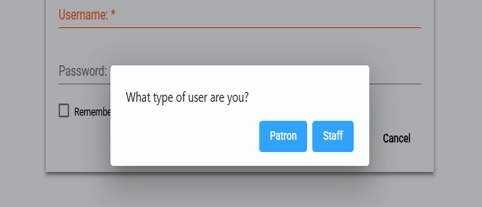
- Enter your library barcode and PIN when prompted.
Searching for an Item
- Enter a title, author, or keyword into the search box.
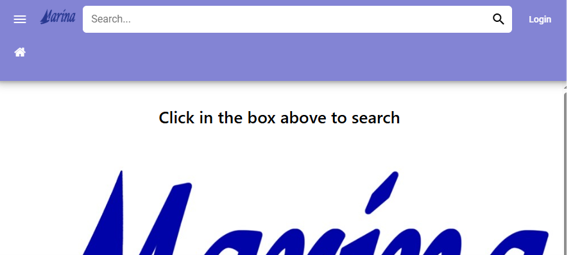
- Use the “Advanced Search” option if you want to narrow the search by specific fields like author or title. You can include up to three different search terms or phrases, specify which fields to search, and select different operators if adding multiple terms. You can also change the sort order for results. By default, your search will look across all participating library systems for results.
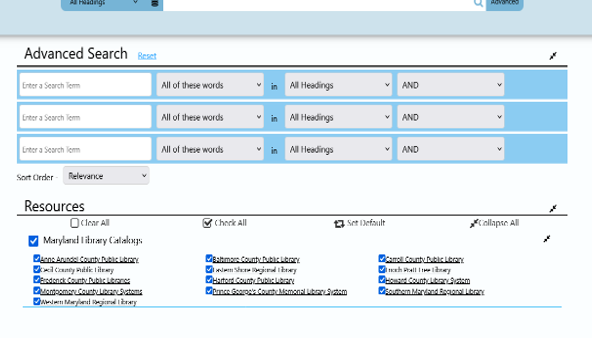
- Once your search results load, you can narrow the results using filters on the left side of the screen. You can also select “Modify Search” to return to the Advanced Search page with existing search criteria already filled in. You can change from list view to gallery view using the view-type icon in the top right corner of the results page.
- Targeted searches offer more specific results and may include a small notification at the bottom results page for “Additional Results Available." Select “Update" to expand the search for more potential results.
Tip: Search History saves recent searches to run again later. Account preferences can be changed to allow for up to 50 saved searches.
Brief & Full Record Display
- If you find an item a patron is potentially interested in but need to confirm it meets their needs, brief and full record displays will provide more detail.
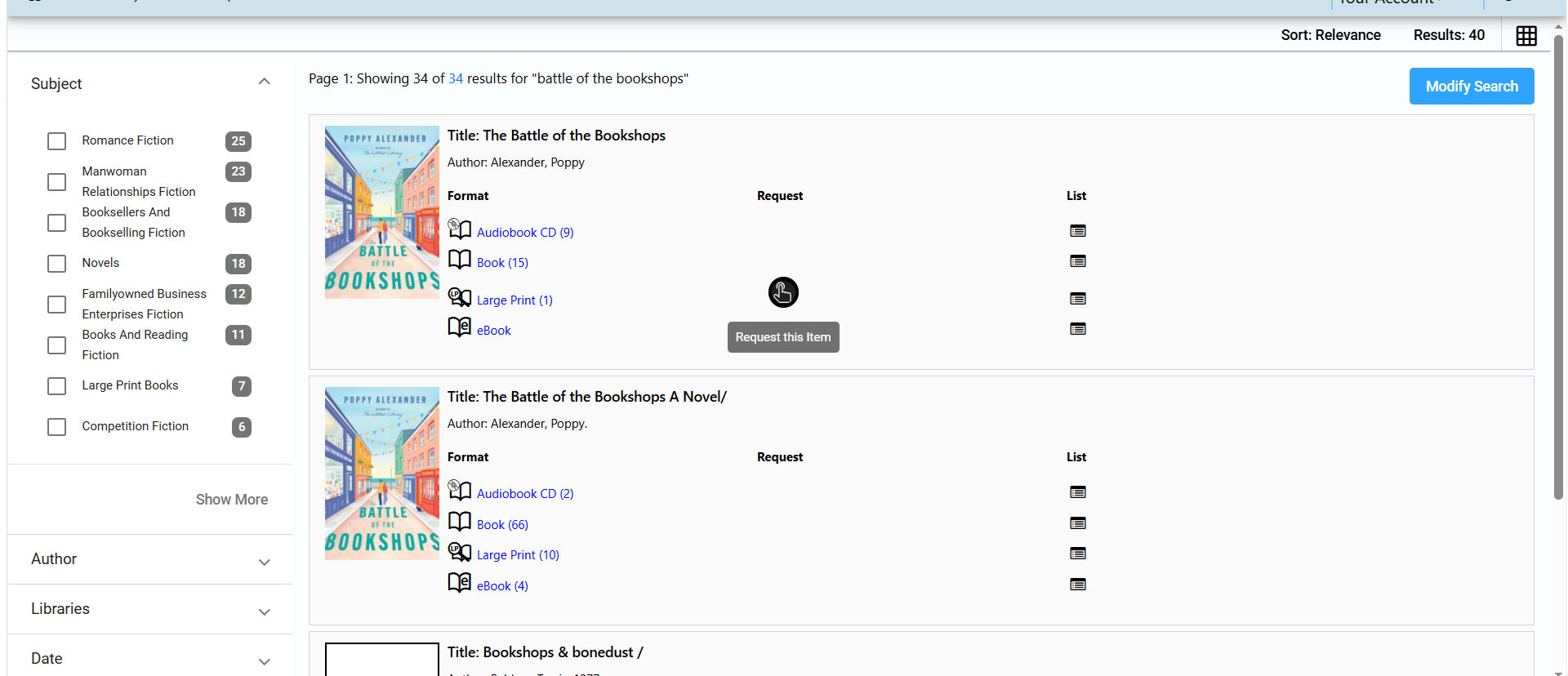
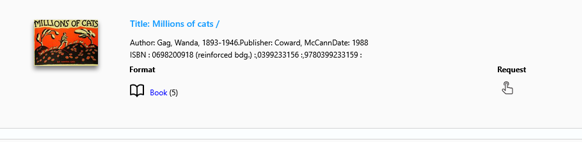
- Once your search results load, you will see the brief record displays, showing you the items available including the title, author, and item format. You can request directly from this page or click on the format type for more information.
-
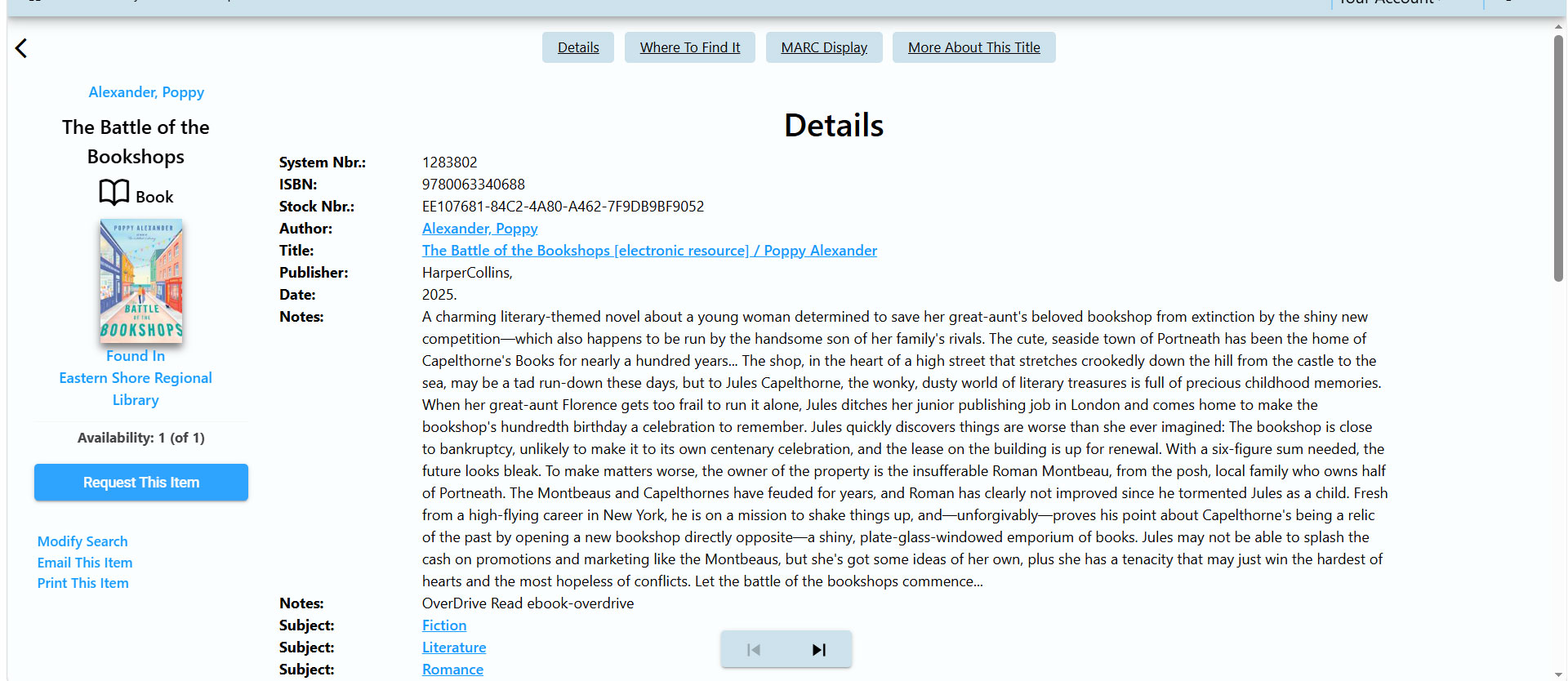
To view the full record display, click on the brief record to expand and show more detailed information for that format. This record will include even more detail from the item’s 'home’ library catalog, so you can confirm if the item will meet the patron’s needs prior to requesting.
Placing a Hold / Request
- Once you find the item you want, click the request icon next to the item on the results screen, or click “Request This Item” on the item's full details page. Then choose “Submit” to confirm your request.
-
If you're not already logged in, you'll be prompted to log in before your request can be placed.
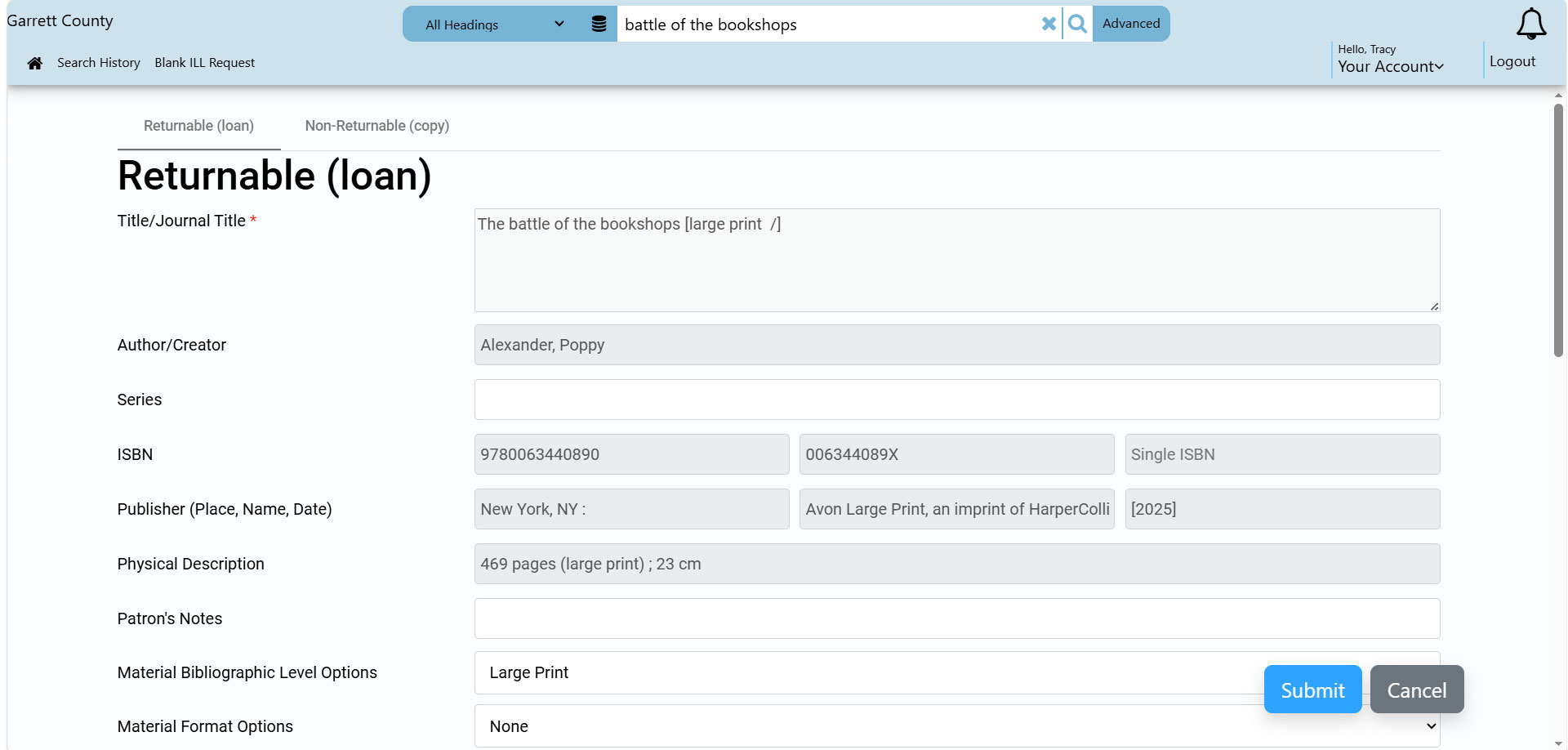
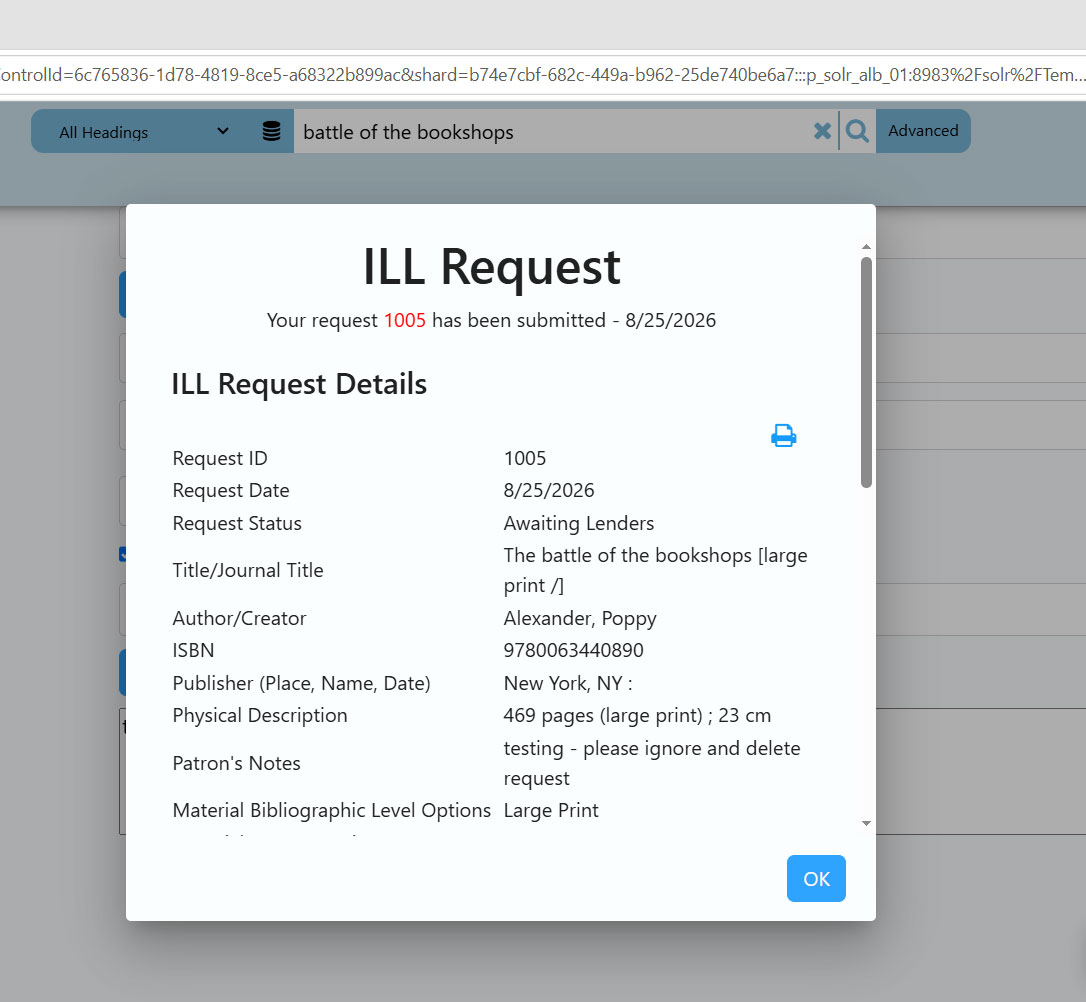
- Confirm your request information that includes your name, barcode, email address, preferred pick up location and any additional notes you would like to send with your request. You'll receive confirmation that your request has been submitted.
Tip: If an item has multiple formats (like print, large print, or audiobook), make sure to select the format you want before placing your request.
Reviewing Requests
- Log in and go to “Your Account.”
- Select “Items from Other Libraries” to see a list of your current and past requests.
- From here, you can see the status of each request — for example, whether it's still being located on its way to your library, or ready for pickup.
Tip: 60 days after the request status has been set to complete, the request will no longer be visible from the patron view. Long term histories of requests will not be retained.
Changing Your Pickup Location
- Go to “Your Account” and locate the request you'd like to update.
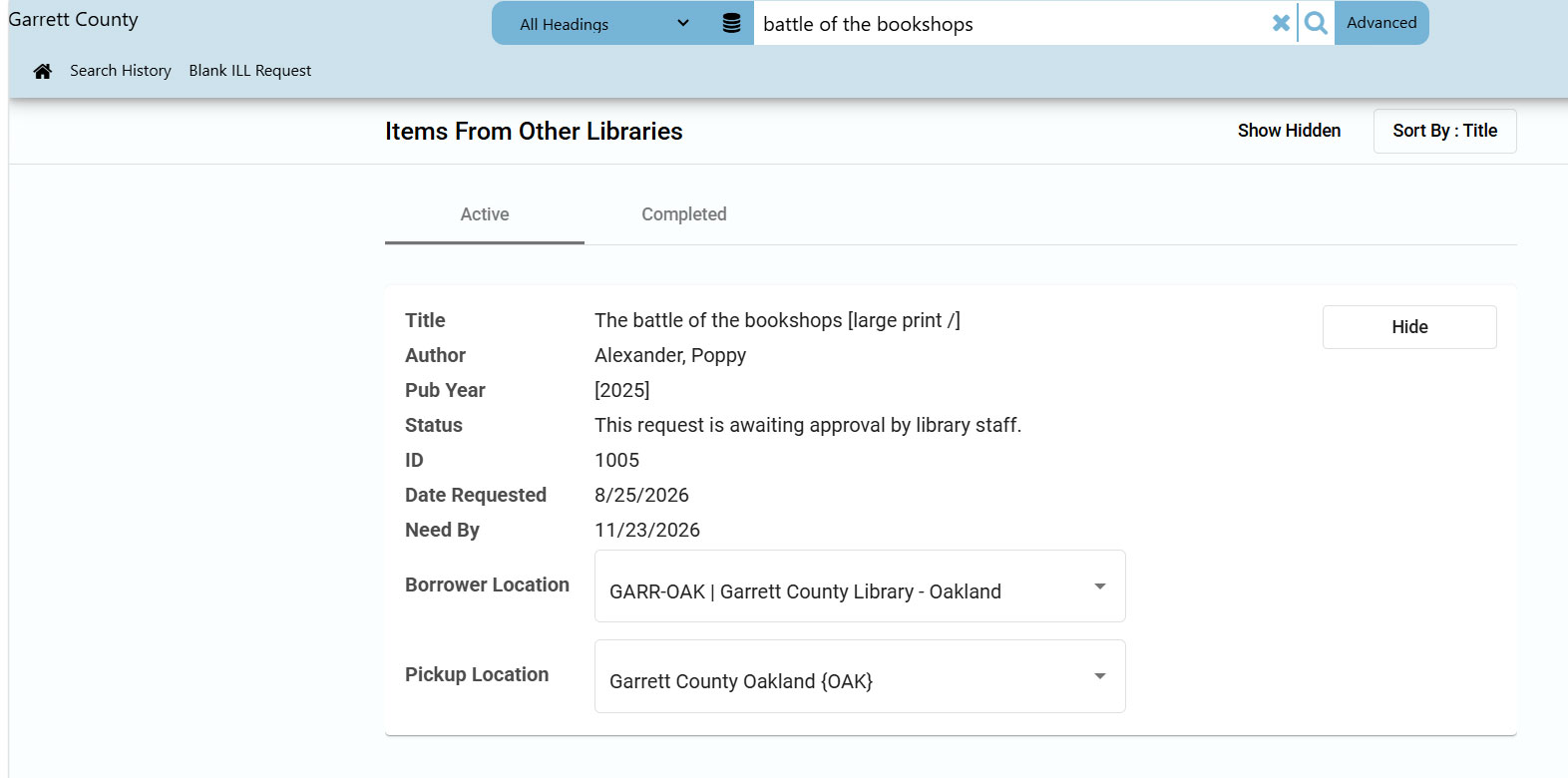
- Select the option to update your pickup location and then choose your preferred library location from the list.
Tip: Changing your pickup location may only be available before your item has shipped. If you don't see this option, contact your local library for help.
Canceling a Request
Requests cannot be canceled directly through your Marina customer account. To cancel a request, please contact a customer service representative at your local library; they can cancel it for you.
Items Not Found in Marina
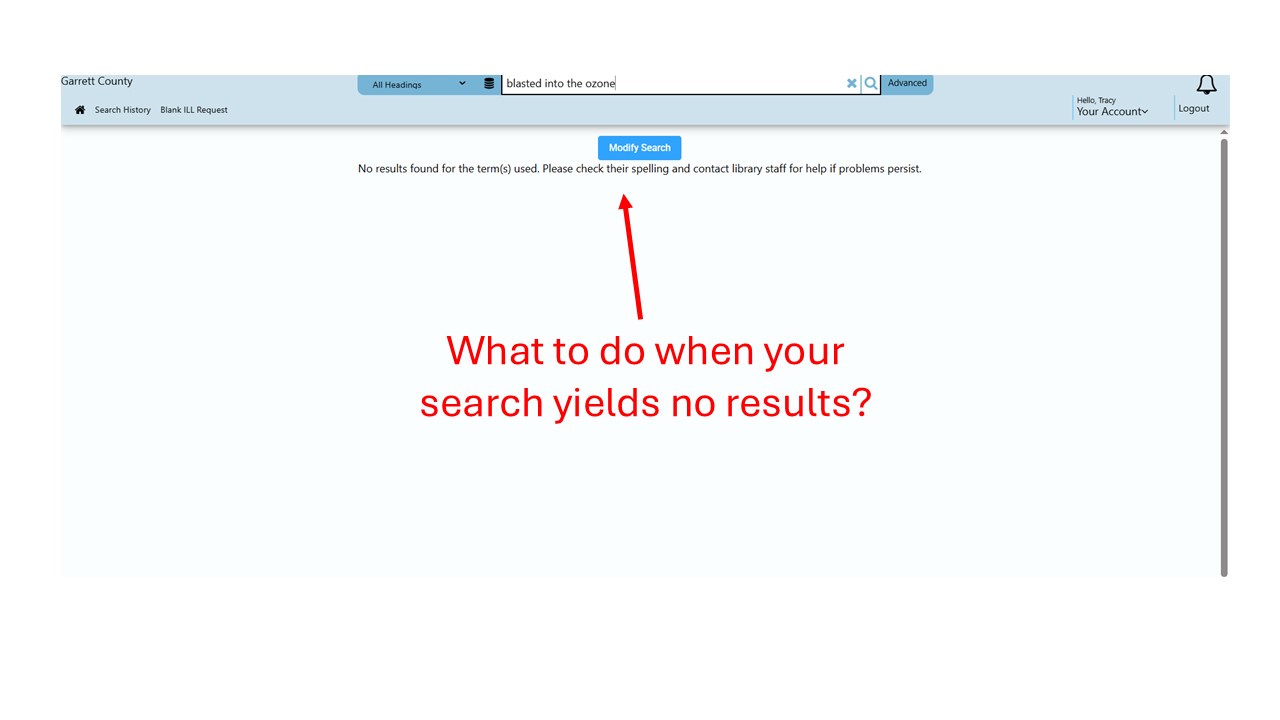
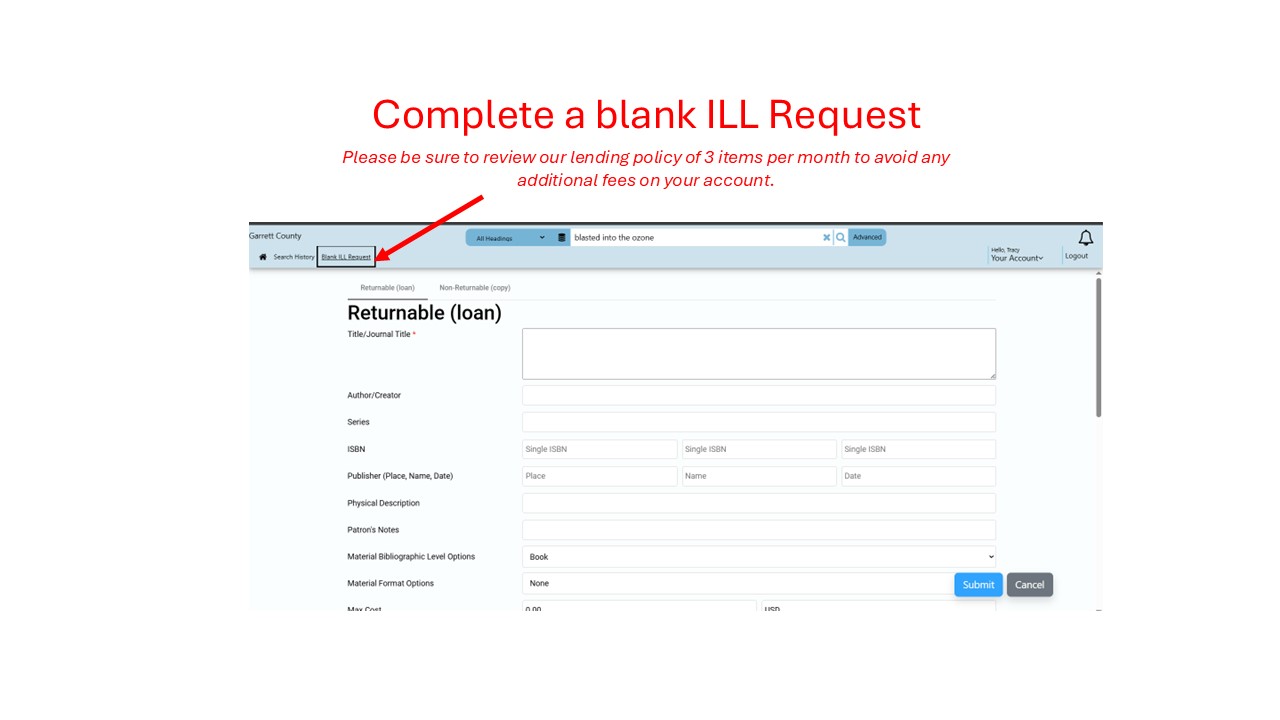
If the item you are searching for bring up no results, you can submit a Blank ILL Request form to submit an OCLC (Out of State) request. A Blank LL Request form is to be used ONLY when the item you require is not available at your local library or in the Marina catalog. Please be sure to search the Marina catalog first as this form will send your request outside of the Marina network to be filled. When completing this form please ensure you include as much detail as possible about the material being requested to ensure the material being sought can be identified and sourced without delay.
Need More Help?
If you have any questions about using Marina, please contact your local library; staff have been trained on the new platform and are ready to help you get the most out of it.